

What is Google Business Profile?
Google Business Profile (GBP), formerly known as Google My Business (GMB), is a free online tool provided by Google to help businesses manage their online presence across Google Search and Google Maps. It allows businesses to share essential information with customers, engage with reviews, and improve visibility in local search results.
Why we need this?
GBP acts as a digital storefront for businesses, ensuring accurate and up-to-date information (e.g., hours, location, contact details) appears when customers search for your business or related services on Google.
Now we know how to create Google Business Profile step by step:
Access Your Profile
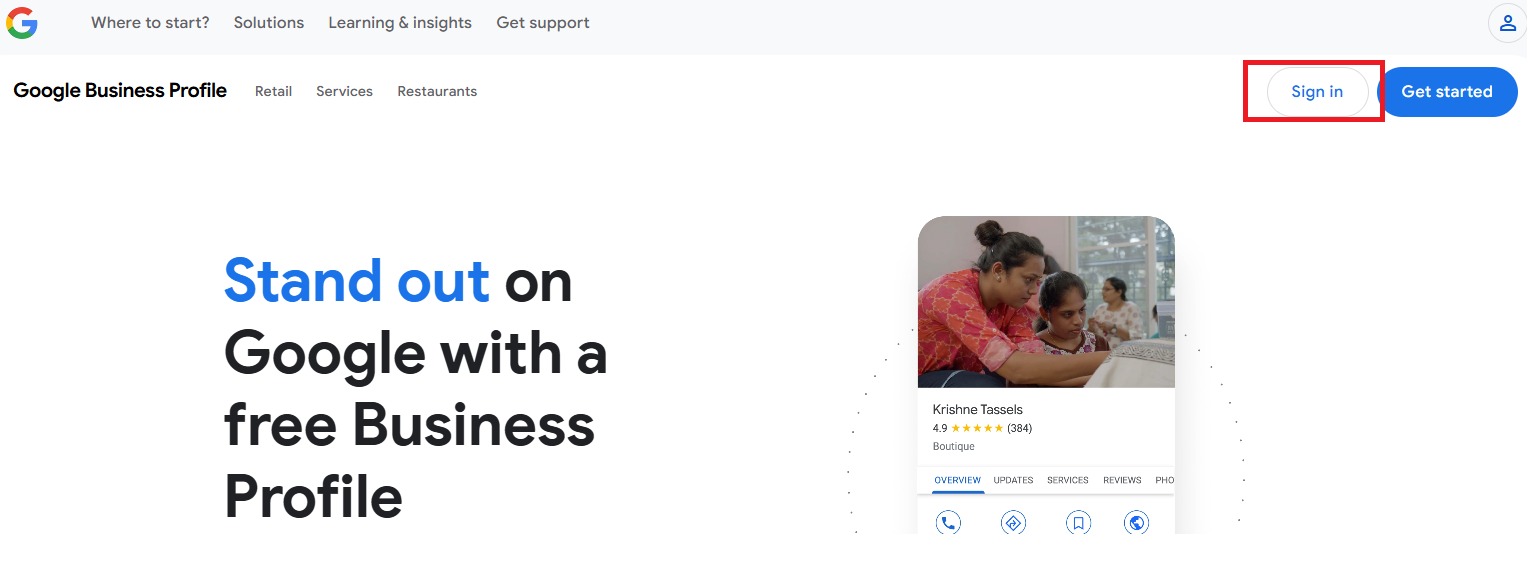
Sign In: Use your Google account to access the Google Business Profile Manager form Google home page or (https://business.google.com/).
Direct Management: Search for your business on Google Search or Maps. Click “Manage profile” in the knowledge panel to edit details directly.
Claim or Create a Profile
Claim Existing: If your business is listed, search for it and click “Claim this business.”
Create New: If not listed, click “Add Business” and enter details (name, category, location, contact).
Verify Your Business
Methods: Choose verification via phone, email, or instant verification (if already verified with Google Search Console).
Complete Verification: Follow instructions sent via your chosen method.
Optimize Profile Information
Business Details: Ensure accuracy in business name, address, phone (NAP), website, and hours.
Attributes: Add attributes like “Mall” or “Car repairing centre.”
Services/Products: List services offered or products available.
Engage with Visual Content
Upload Photos/Videos: Add high-quality images of your premises, products, and team (Google recommends at least 3 photos).
Logo & Cover Photo: Enhance brand recognition with a logo and eye-catching cover image.
Manage Customer Interactions
Respond to Reviews: Acknowledge positive reviews and address negative feedback professionally.
Enable Messaging: Use the messaging feature to communicate directly with customers via the Google Maps app.